Building a Ludus Range
I am a firm believer in hands-on practice when learning something. This applies to AWS, pentesting, Microsoft Purview, you name it. The problem is that online platforms are becoming more and more expensive. VMware Workstation is a quick solution. But if you are serious about your career, it's better to spend $1k on a small server and set up Ludus.
Ludus runs on Proxmox, which is the equivalent of vSphere without all the licensing and cost drama. It is open source and runs on Debian. And it lets us deploy very complex setups or cyber ranges in a matter of minutes, including Windows.
Granted, you have to learn a few commands to make the magic happen. They are simple ones. Ludus is declarative, so you write the whole range in a YAML file, push it to the server, then deploy. That's it. Go grab a coffee or a Coke Zero and you come back to a full AD environment.
This is exactly what I did to set up a small environment for my new Purview lab. Purview is Microsoft's data governance and DLP platform, the thing that is supposed to catch data walking out the door. That topic deserves its own post and I will get to it eventually. What follows is how I built the range it runs on: range PURVIEW, domain purview.lab, VLAN 10, network 10.4.0.0/16. Client and server are 1.11.5, community license.
Know which port you're talking to
Ludus exposes two endpoints and they are not interchangeable. Get this wrong and you'll waste an hour wondering why a command that "should work" doesn't.
| Port | API | Scope | Reachable from |
|---|---|---|---|
| 8080 | User API + web UI | Ranges, deploys, configs | Anywhere over WireGuard |
| 8081 | Admin API | User creation and deletion | localhost on the Ludus host only |
Only step 1 touches 8081. Everything after that is 8080, including admin commands that carry a --user flag.
Create the user that owns the range
Every range belongs to exactly one Ludus user, and that user ID becomes the range_id that prefixes every VM name. It's an admin API call, so run it on the Ludus host over SSH.
That API key is your credential for everything that follows, in this post and in anything you build on the range afterwards. The one above is invented, so don't bother.
range_id and gets baked into every VM name in Proxmox, so PURVIEW gave me PURVIEW-purview-dc01. Changing it later means deleting the user, and that destroys the range. Keep it short too, it counts against the 15 character Windows hostname limit. And treat that API key like the full credential it is.
Grab the WireGuard profile now so you can reach the range from your workstation later.
Become the range owner
Export that user API key. In this mode no --user flag is needed, and it can't be used, because a non admin key is already scoped to its own range.
ludus apikey prompts for the key and stores it, so you don't have to export it in every new shell. The alternative is keeping an admin key loaded and targeting the range with --user PURVIEW on every command. Range operations stay on 8080 either way.
Build the templates first
A range clones from templates, so nothing deploys until the ones you reference exist. Check before you write a single line of YAML.
This range needs three of those: win2022-server-x64-template for the DC, win11-22h2-x64-enterprise-template for the workstation, and debian-11-x64-server-template for the router Ludus builds on its own. All three have to read ✅ BUILT or the deploy dies on the first clone.
Anything sitting at NOT BUILT, build it and watch Packer work.
--parallel N builds several at once, but you get no per template logs in that mode. Good news is you only pay this once per Ludus server. Every range after that clones from finished templates in minutes.
Define the range, and don't define the router
Here's the part I did not expect. You don't create the router. Ludus deploys one automatically for every range, derived from the VLANs your VMs use. It handles routing, DHCP, DNS forwarding, and the firewall between VLANs. Omit it and you get the defaults, which is exactly what produced PURVIEW-router-debian11-x64 at 10.4.10.254.
So the config is two machines: the domain controller and one Windows 11 workstation joined to it. A DC on its own is a domain with nothing in it, and nothing to practice against. The quoted 'EOF' stops the shell from touching the {{ range_id }} braces.
role: primary-dc is what promotes the first VM. Ludus installs AD DS, creates the forest for purview.lab, and provisions the default domain accounts. The VLAN you pick becomes the third octet of every address in the range, so VLAN 10 gives you 10.4.10.0/24 with the router sitting on .254.
role: member on the second VM is the entire domain join. Ludus points the machine at the DC for DNS, joins it to purview.lab, and reboots it. You never see the join dialog. Both machines sit on VLAN 10, so they talk to each other without a firewall rule.
Windows 11 wants 8 GB to feel like a machine and not a punishment. Drop it to 4 if the host is tight, but expect it to drag.
hostname must be 15 characters or fewer, and keep it literal. Putting {{ range_id }} in a hostname inflates it past the limit and the domain join fails. vlan has to be between 2 and 255. ip_last_octet must be unique in the VLAN, and avoid 254 because the router owns it. Spaces only, a single literal tab kills the YAML parse and the error tells you nothing useful.
Push it and deploy
Order of operations: the router is cloned and configured first, the VLAN and firewall come up, then the DC is cloned, syspreped, promoted to primary domain controller for purview.lab, and rebooted. The workstation goes last, because it cannot join a domain that does not exist yet.
wait_for_connection between each one. Long silences in the log are normal. Silence is not a hang. Never start a second deploy while status reads DEPLOYING. If you need to stop, use ludus range abort.
Verify it actually built
Three VMs, router on .254, DC and workstation on their declared static IPs. Note again that the router was never in my config. Ludus created it.
Now, we are not done yet. The range lives on 10.4.10.0/24 behind the Ludus host, so nothing on your workstation can reach it until the tunnel is up. We need the WireGuard profile from section 01. Copy purview-wireguard.conf down from the Ludus host, Add Tunnel in the WireGuard client, Activate.
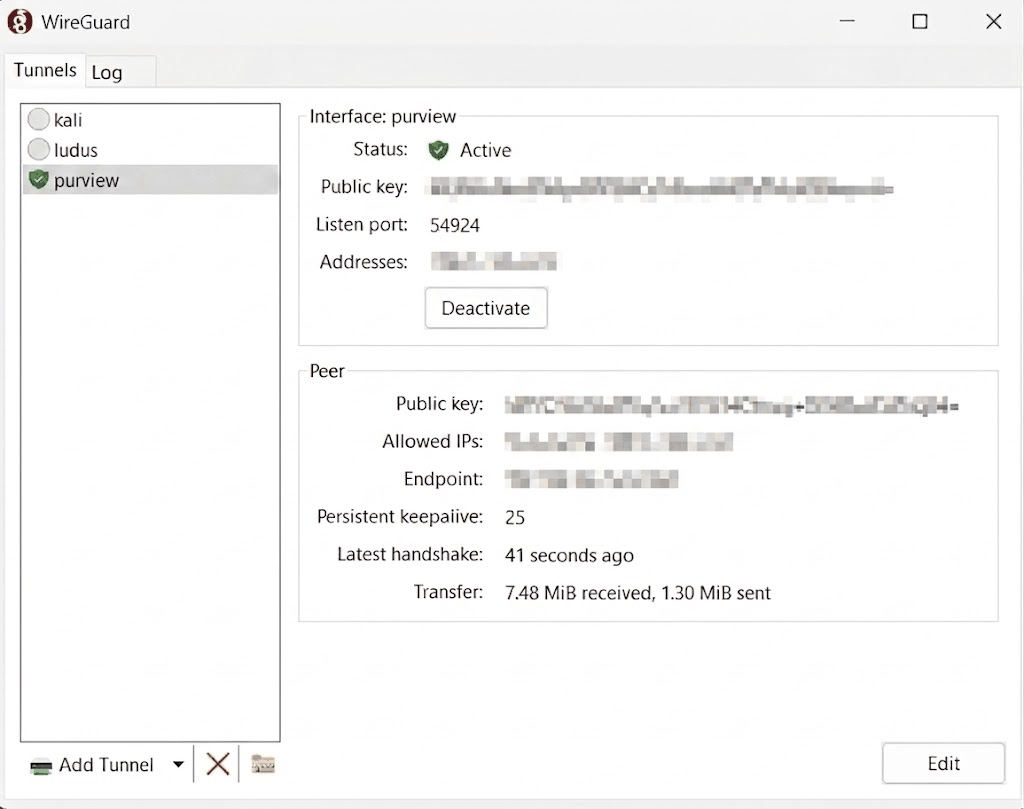
Active does not mean much on its own. I look at Latest handshake. A few seconds old with the transfer counters moving and the tunnel is up. No handshake at all and the profile is dead, green icon or not.
Each range user gets its own profile, so I keep kali, ludus and purview separate in that list. Different credentials, not copies.
You can check the same thing from the Ludus host if the client side looks wrong and you want to know which end is at fault.
Sent and received are backwards from what the client shows, which is right. What the client sent is what the server received. A peer with no handshake line never came up at all.
defaults block, which is the case here. purview\domainadmin, purview\domainuser, and the local localuser account all use password. Autologon switches to the domain user once a machine is joined.
If that comes back False, stop. The problem is the tunnel or the Ludus host, not the range, and no amount of poking at the DC will fix it.
With the tunnel up there is no RDP file to download and nothing to configure beyond the IP. I open MobaXterm, new RDP session, 10.4.10.10, purview\domainadmin and the default password. MobaXterm keeps every session in one tabbed window instead of scattering RDP clients all over the desktop, which matters more the moment the range is bigger than two machines.
Once you are on the DC, open Active Directory Users and Computers. That is the check. purview.lab with its OU tree under it means the promotion worked, and PURVIEW-WS01 sitting in the Workstations OU means the join worked.
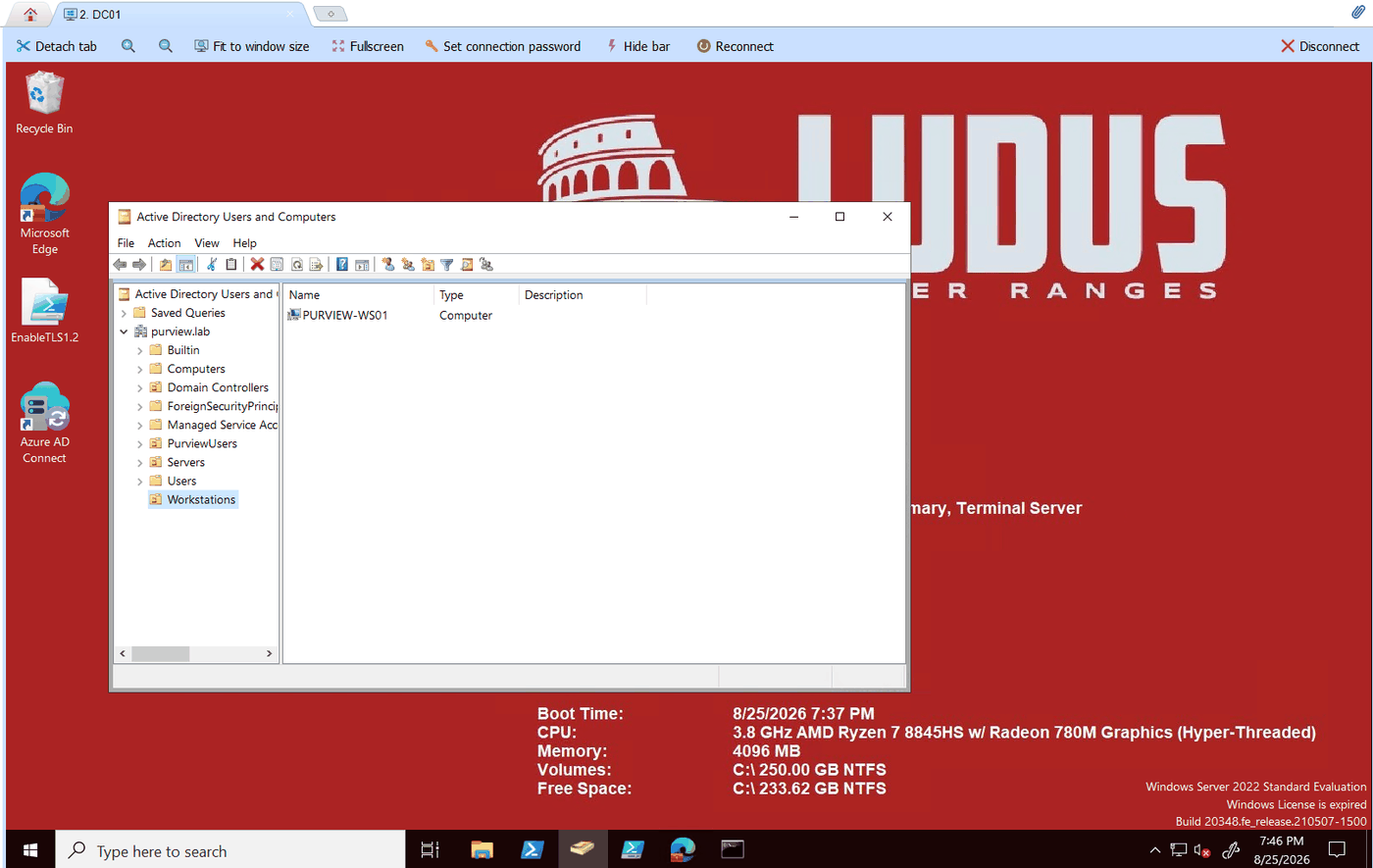
No domain in the console means the promotion failed and everything you build on this range fails with it. Domain there but no computer object means the workstation cloned and never joined. Check DNS on the workstation first, that is what it usually is.
Last thing. Snapshot the clean range before you build anything on top of it. Restoring costs seconds, redeploying costs an hour.
Rolling back later is ludus snapshots revert baseline. Add -n 121 to put only the workstation back and leave the DC where it is.
Adding the next machine
Every VM after these two is the same three steps: append it to the YAML, push the file, deploy. The difference is that now there is something running you don't want rebuilt, so scope the deploy instead of firing the whole range again.
The name after --limit is the rendered vm_name, range_id and all, not the hostname. Get it wrong and Ansible matches nothing, the play ends in seconds, and the log reads like a success.
Commands worth keeping
That's a working range: an automatic router, a domain controller running purview.lab, a workstation joined to it, and a snapshot to roll back to. Everything after this is the same three steps, so the range grows as fast as you can write YAML.