Three Ways to Run Claude
AI changes fast. What we learned a few months ago may not be true today. I was recently going through one of Anthropic's courses, just for fun, and the curriculum changed on the fly. Cowork got removed and folded into Claude Chat, and that is only one example. One thing that has stayed relatively stable so far, though, is the setup, at least for Claude.
Knowing how to install Claude is the key to actually using it. The simplest option is the browser version (software you just log into online, with nothing to install), but that is not always the best fit for more advanced work. That is why it helps to understand every option, including the command line ones. The same is true for ChatGPT, but I will focus on Claude here. It is my favorite AI product for cybersecurity work, at least right now, in September 2026. The competition is so fierce that I might change my mind in a few months and switch to whatever works better and costs me less.
Here are the three options, starting with the easiest one first.
The browser, nothing to install
The easiest option of all. Open a browser, sign in, done. Nothing to install, patch, or maintain.
- Individuals: Free, Pro, and Max.
- Organizations: Team and Enterprise.
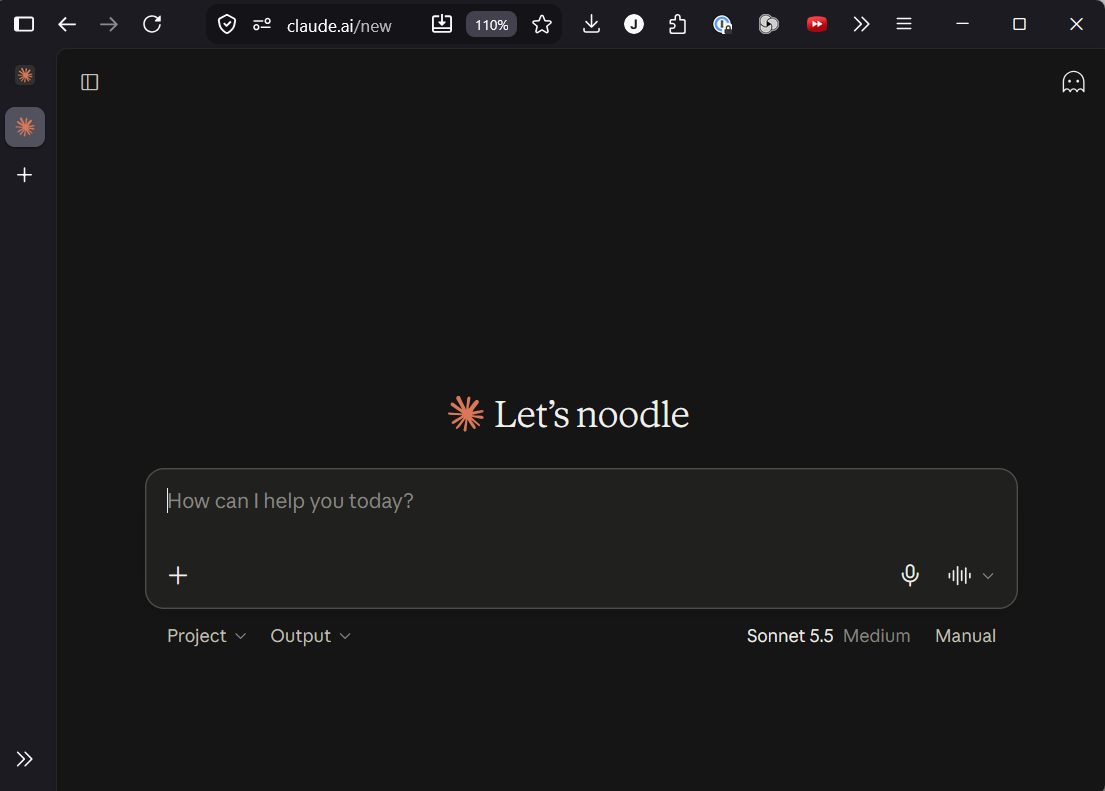
Good for asking questions, drafting notes, or reasoning through a problem. Definitely not the one to pick for more advanced activities, but I am mentioning it because in some situations it is the only option available. It is just not the right method when you want to do things like agentic AI, where the assistant carries out multi-step tasks on its own, or repetitive automated work.
One thing worth knowing: Claude Code also has a browser version at claude.ai/code. It runs your coding tasks in Anthropic's cloud from a GitHub repo, with nothing to install and a paid plan required. So the browser is not strictly chat only. Just remember it runs in the cloud, not on your Kali box, so it cannot reach your local tools or targets.
Like the browser, but with extras
The desktop app is a wrapper around the same service you get in the browser, with extras on top like visual diff review, an integrated terminal and editor, and live app preview. You can also run Claude Code from it, and point it at local folders or even the cloud.
Inside the app you get Claude Chat and Claude Code as separate tabs. Chat is the same conversation experience as the browser; Code is the same Claude Code you can install on its own in the next section, just with a visual interface instead of the terminal.
For a long time it was Mac and Windows only, but that has changed. Anthropic now ships an official Linux desktop app, currently in beta. It officially supports Ubuntu 22.04 or later and Debian 12 or later on x64 and arm64. Kali is Debian based, so it may run, but Kali isn't one of the officially tested distributions, so treat it as unsupported.
Installing it depends on your system.
Windows and Mac. Download the installer from the official download page, run it, then launch Claude and sign in. The app keeps itself up to date. On Windows, pick the x64 installer, or the ARM64 one if you are on an ARM machine.
Debian based Linux. It installs from Anthropic's signed apt repository, the same idea as the CLI. Add the repo and key first, taken from the official Linux docs since it includes GPG verification, then install:
Launch Claude from your app menu or run claude-desktop, then sign in. On Linux the desktop app does not self-update, so new versions arrive with your normal system upgrades.
The terminal agent
This is the one most cybersecurity professionals and pentesters actually want. An agentic assistant that lives in your terminal and can read, run, and reason about your work directly. Three install paths, and since Kali is Debian based, all of them work.
Native installer, the one I'd recommend
Needs no root (no administrator access) and drops the program into your home folder at ~/.local/bin:
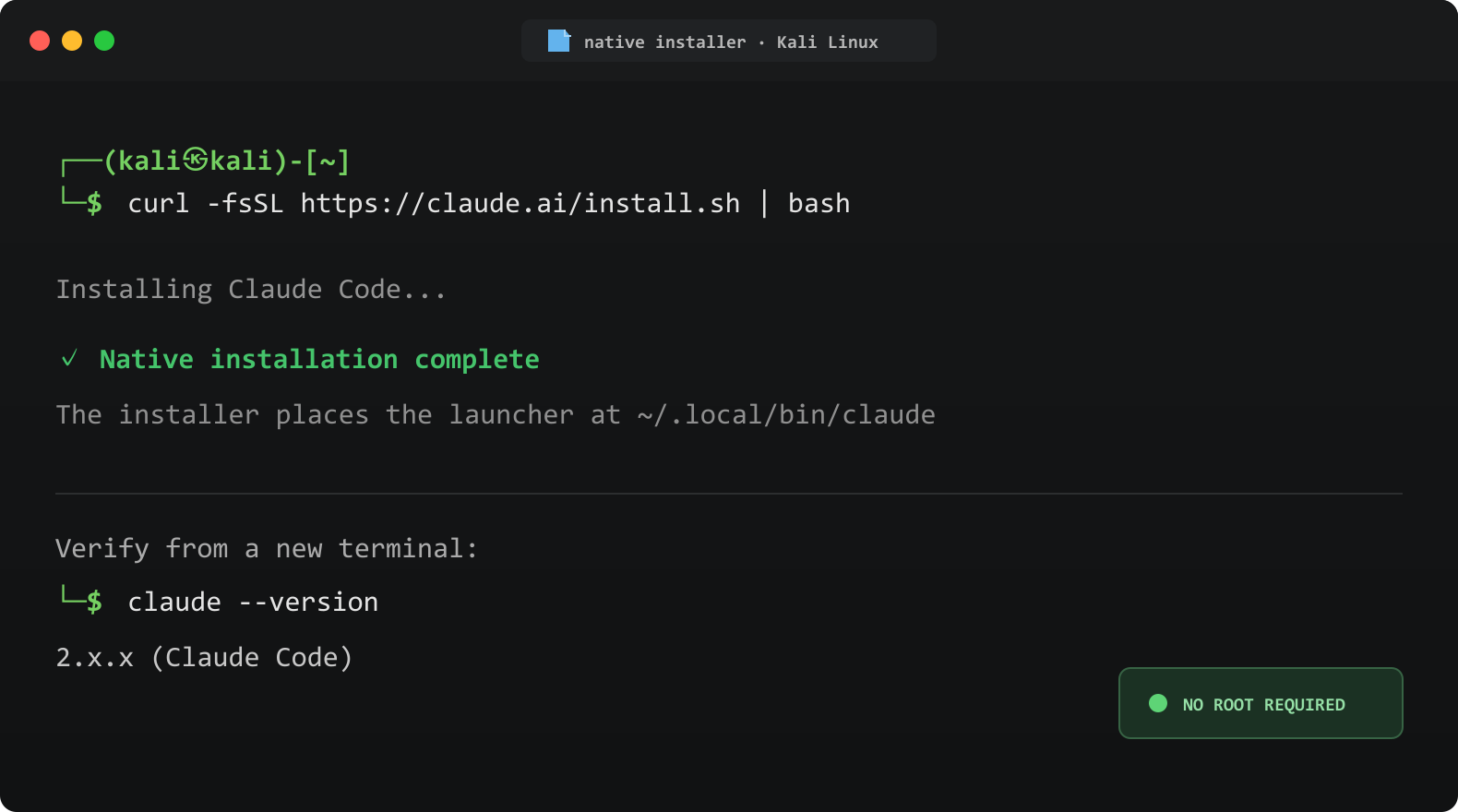
This is the path to pick if you want zero maintenance. It self-updates quietly in the background, so you're always current without doing anything.
apt, Anthropic's signed repository
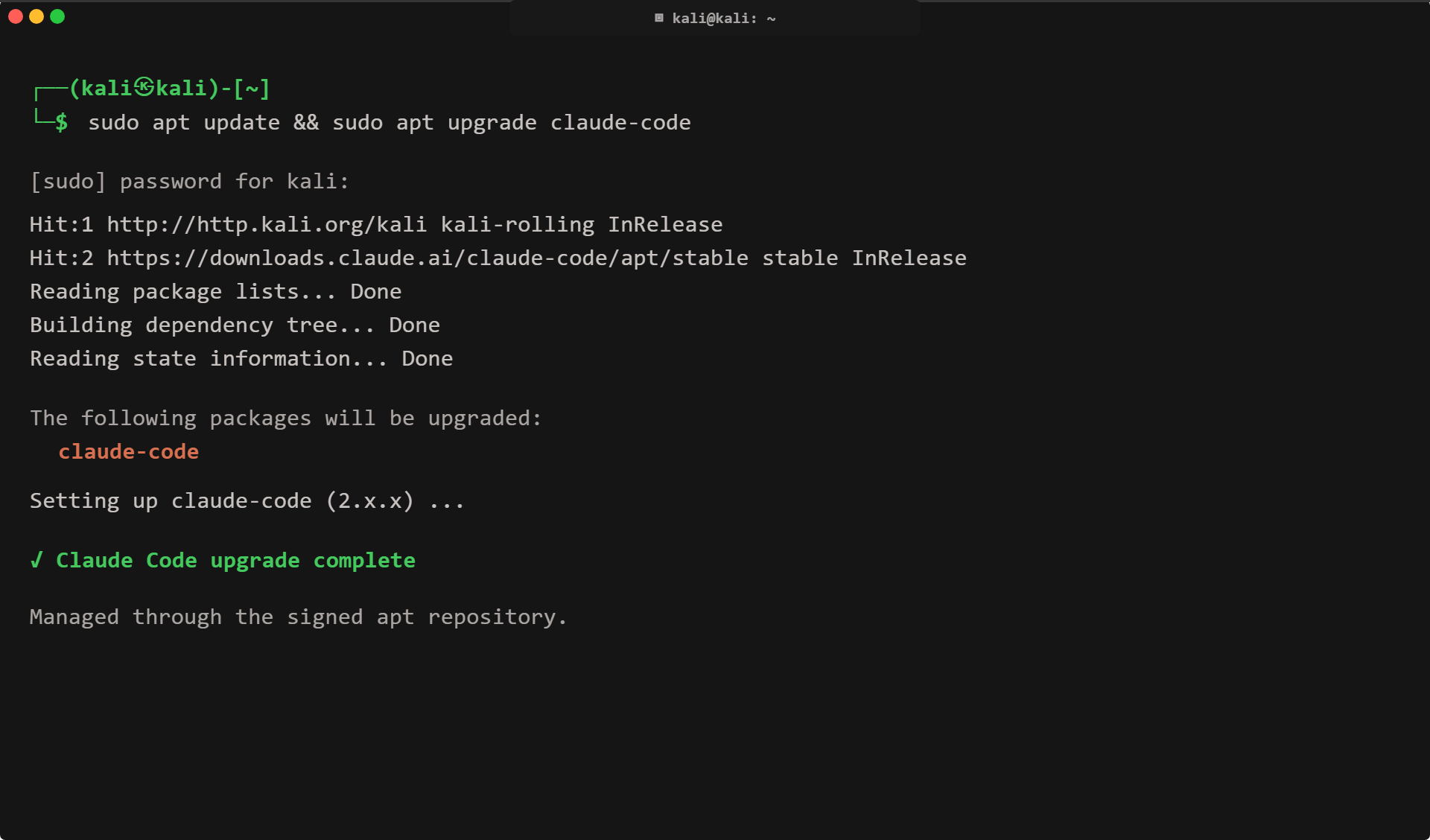
apt is supported through Anthropic's signed repository. You add the repo and key first, then install:
Upgrades then ride along with your normal patching:
npm
Quick note on what npm is, in case the name is new. npm is the standard tool for installing software written for Node.js, a widely used programming platform. If you have ever done web development you probably already have it. If not, no problem: just know this is the most developer-focused of the three routes, and the least convenient on a machine like Kali.
npm works too, with two conditions. It needs Node.js 22 or later, and you should never run it with sudo, the command that runs things as administrator:
Updates here are fully manual. You re-run the install command when you want a new version.
Pick by update style
All three methods install the exact same program (the same native binary). The choice isn't about capability, but about how updates get handled.
| Method | Updates | Root? | Extra deps |
|---|---|---|---|
| native | Self-updates in background | No | None |
| apt | With the system | Install / upgrade | None |
| npm | Manual | No | Node.js 22+ |
apt. The signed repo fits normal patching, and you avoid a Node dependency on a machine already full of tooling. Fewer moving parts, one patching workflow, a verified key. If you'd rather not think about updates at all, the native installer is the low maintenance choice.
So which one?
If you only need to ask questions or do some quick research, the browser is more than enough. It may not be the right choice if you want to work with artifacts or analyze documents though, like Excel, Word, or even HTML pages. If you are a cybersecurity professional or want to work on agentic AI deployments, go with the CLI; it may look intimidating at the beginning, but you will find your way around quickly.